Updating Multiple Bill of Materials
When changes have been made to the component library, it may be desirable to propagate these changes to multiple BOMs. This used to be a laborious process if many BOMs need to be updated at the same time, involving opening each BOM and updating them one at a time.
Now, this process is much easier. A new update feature provided as part of the product and versions navigator helps you to propagate changes to multiple BOMs at once.
To use this feature, open the “Product Navigator”:

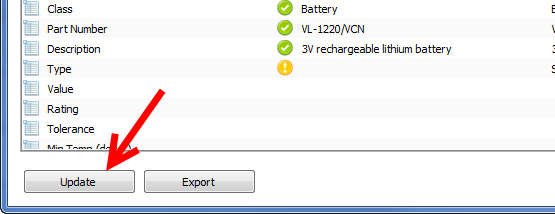
Click the “Update” toolbar button:

A dialog will appear prompting you to select the product versions you want to update. Select them using the check boxes and click the “Select” button to continue:
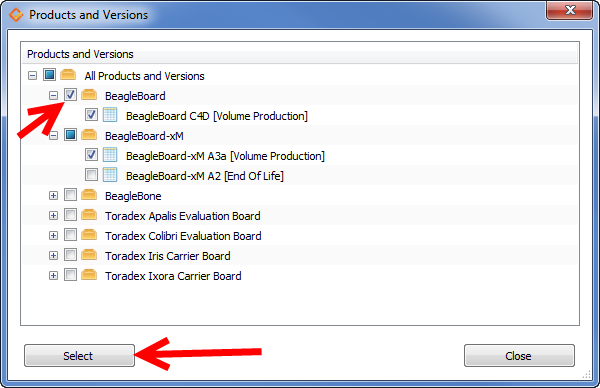
Note that only product versions which are not locked will be shown in this dialog (it is only permitted to update non-locked versions).
Differences between the selected product versions and the component library will be computed. This may take a few minutes for multiple and/or large BOMs.
Once the differences have been computed, they will be shown in a difference viewer dialog, allowing you to preview the changes before accepting and committing them:

To export the differences to a spreadsheet, click the “Export” button:
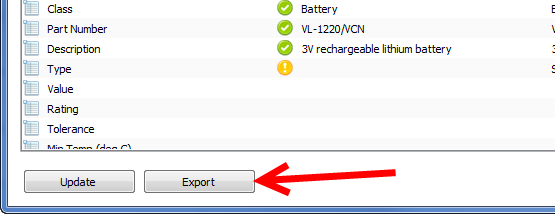
Once you are happy with the changes, click the “Update” button to commit them. Please note that this may also take several minutes if there are many BOMs to update: